
At a glance
Test your agent with real questions before making it available.
Before you start
- Your agent is created and configured (tools + context). See Configure tools.
Steps
1. Open the test panel
From the agent editor, use the test panel (on the right side of the screen). Enter a question representative of your use case.
Example test questions:
- "Who are our main suppliers?"
- "Create a Product entity named Sensor X200."
- "How many orders are currently in progress?"
2. Run the test
Click Send to run the test. The agent processes the question using the tools and context you configured.
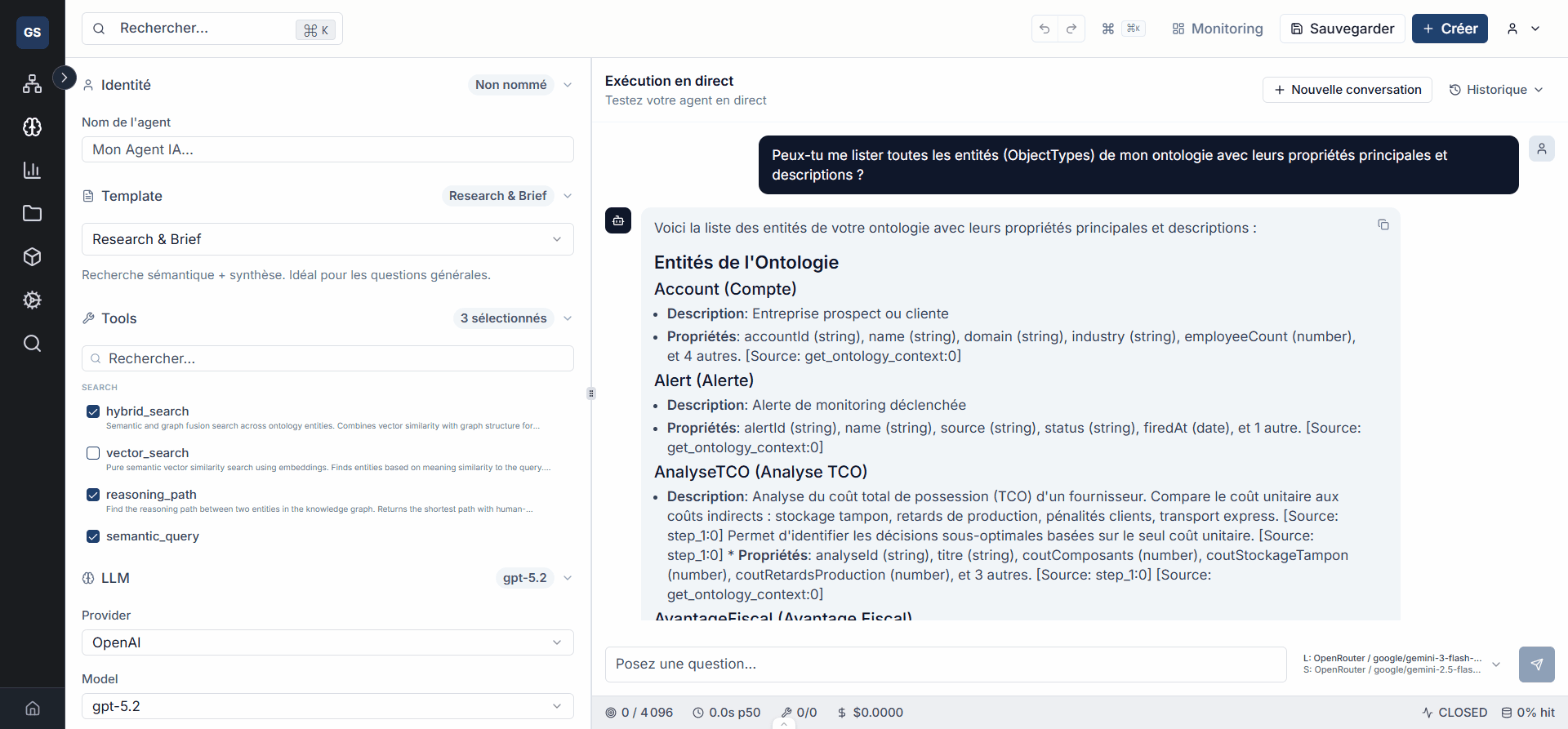
3. Evaluate the response
Check the response quality on several criteria:
- Relevance: does the response match the question asked?
- Tools used: did the agent use the right tools (ontology search, documents, etc.)?
- Tone and format: does the response follow the system instructions?
- Accuracy: is the cited data correct?
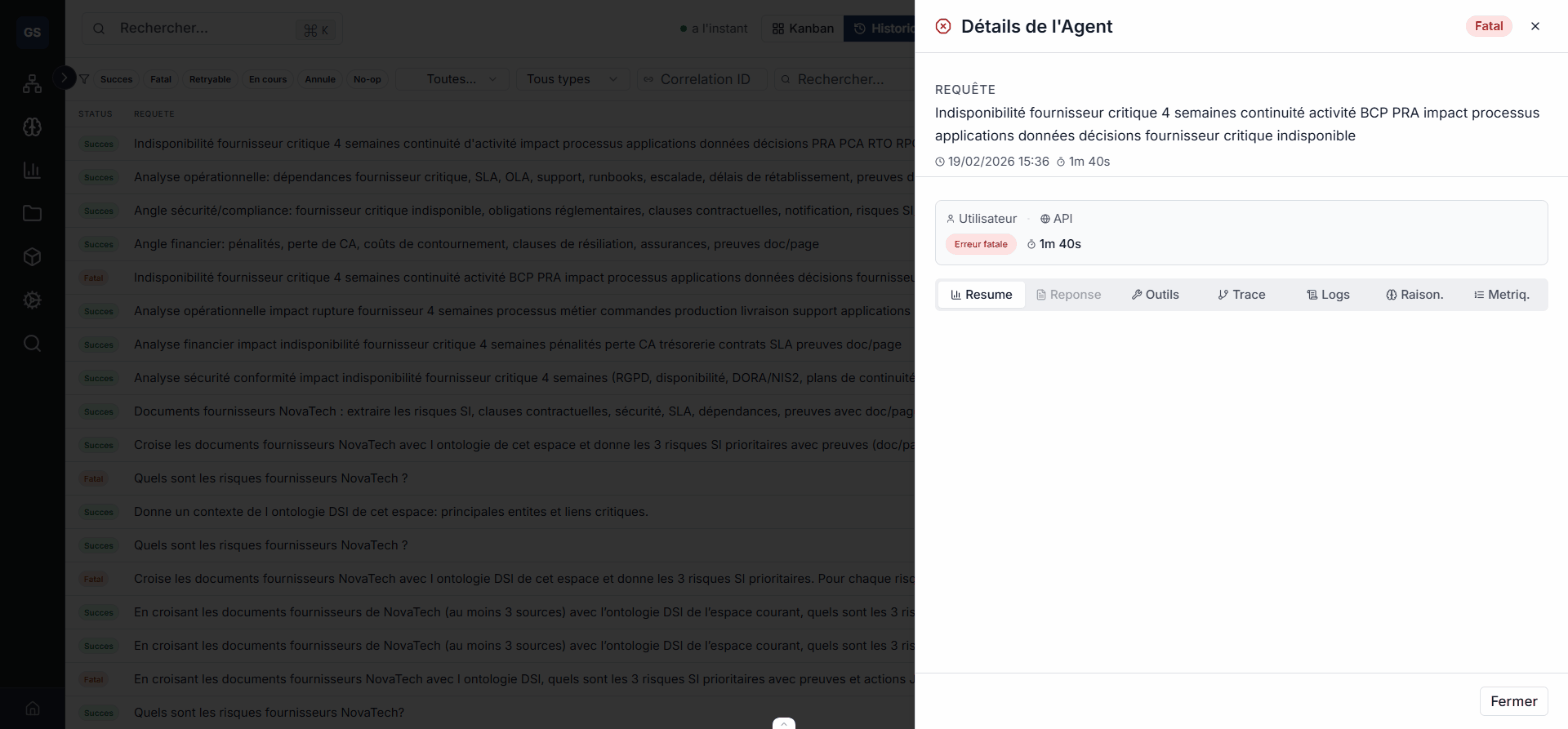
4. Diagnose errors
In case of an error or unsatisfactory response, identify the cause using the execution details.
| Symptom | Likely cause | Solution |
|---|---|---|
| Empty or off-topic response | Ontology context too narrow | Broaden the scope of accessible entities |
| Agent does not use the expected tool | Tool not enabled | Check the tool configuration |
| Execution error | Connection or permission issue | Check the workspace and API keys |
| Response too long or too vague | Insufficient system instructions | Specify the format and boundaries in the prompt |
5. Adjust and re-test
Fix the configuration (tools, context, system instructions) based on the results, then re-run the test. Repeat until you get satisfactory responses.
Expected outcome
Limits and common issues
- Response time depends on the question complexity and the number of enabled tools. An agent with fewer tools responds faster.
- If the agent systematically returns errors, check that your workspace contains data (entities, documents) within the configured scope.
- Configuration changes take effect immediately for the next test, without needing to reload the page.
Need help?
Write to us: Support and contact.