
At a glance
Add your files to the Knowledge Base to make them searchable and connect them to your relationship graph.
Before you start
- You have access to an Ontologie workspace.
- Your documents are ready in an accepted format (PDF, DOCX, Markdown, TXT, or HTML).
- Each file is under 50 MB.
Document library
The library displays all your documents as a grid or a list. You can filter by status, format, source, tags, or date added.
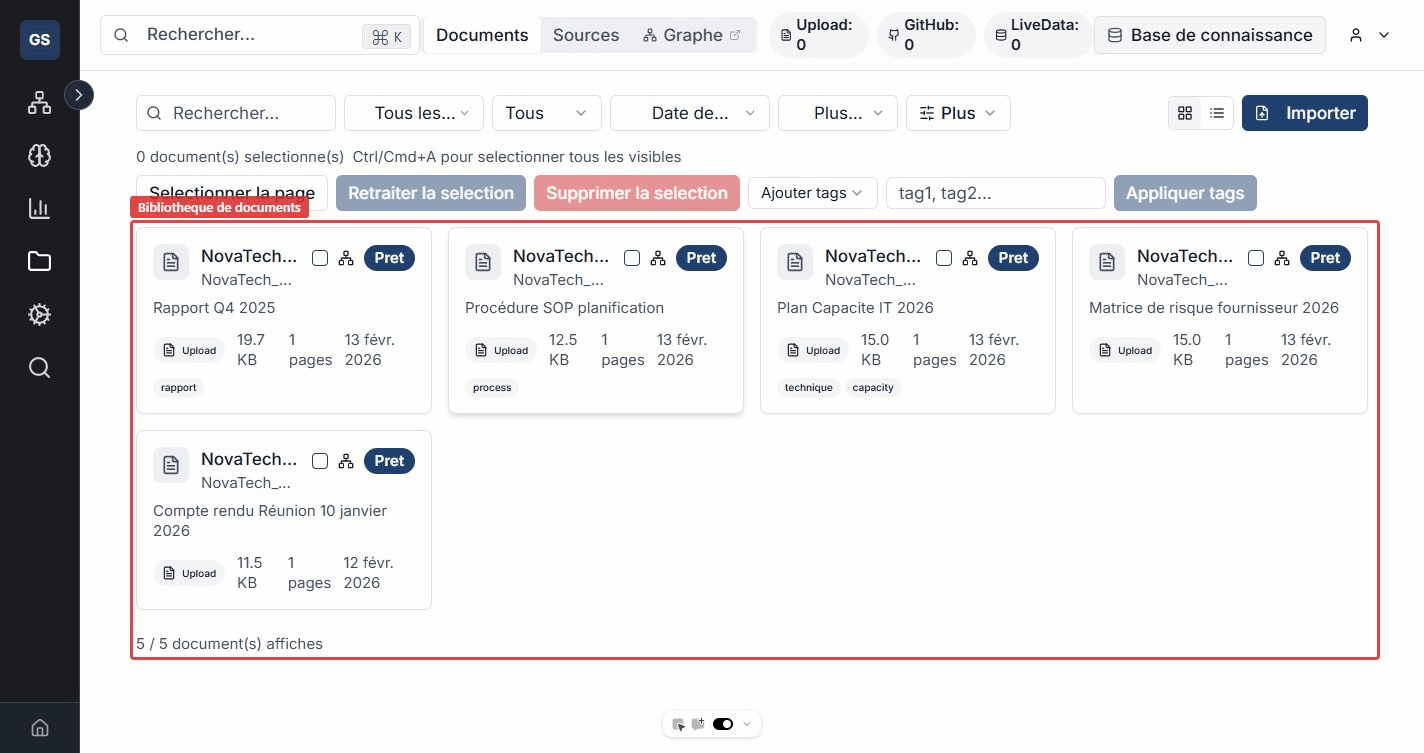
Available filters
- Status: Ready, Processing, Error.
- Format: PDF, DOCX, Markdown, Text, HTML.
- Source: filter by origin (manual import, GitHub, Confluence, etc.).
- Tags: search by keywords with automatic suggestions.
- Date: set a date range (from / to).
Add files
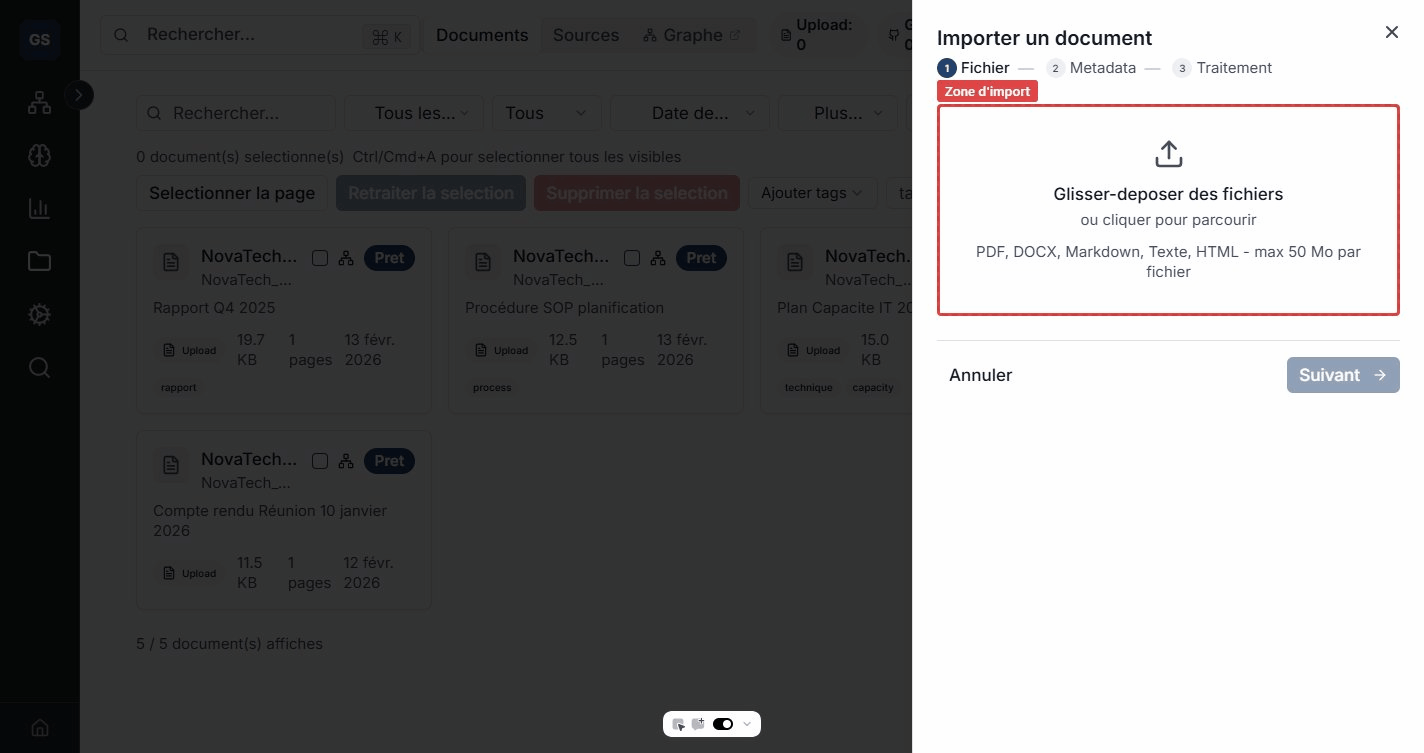
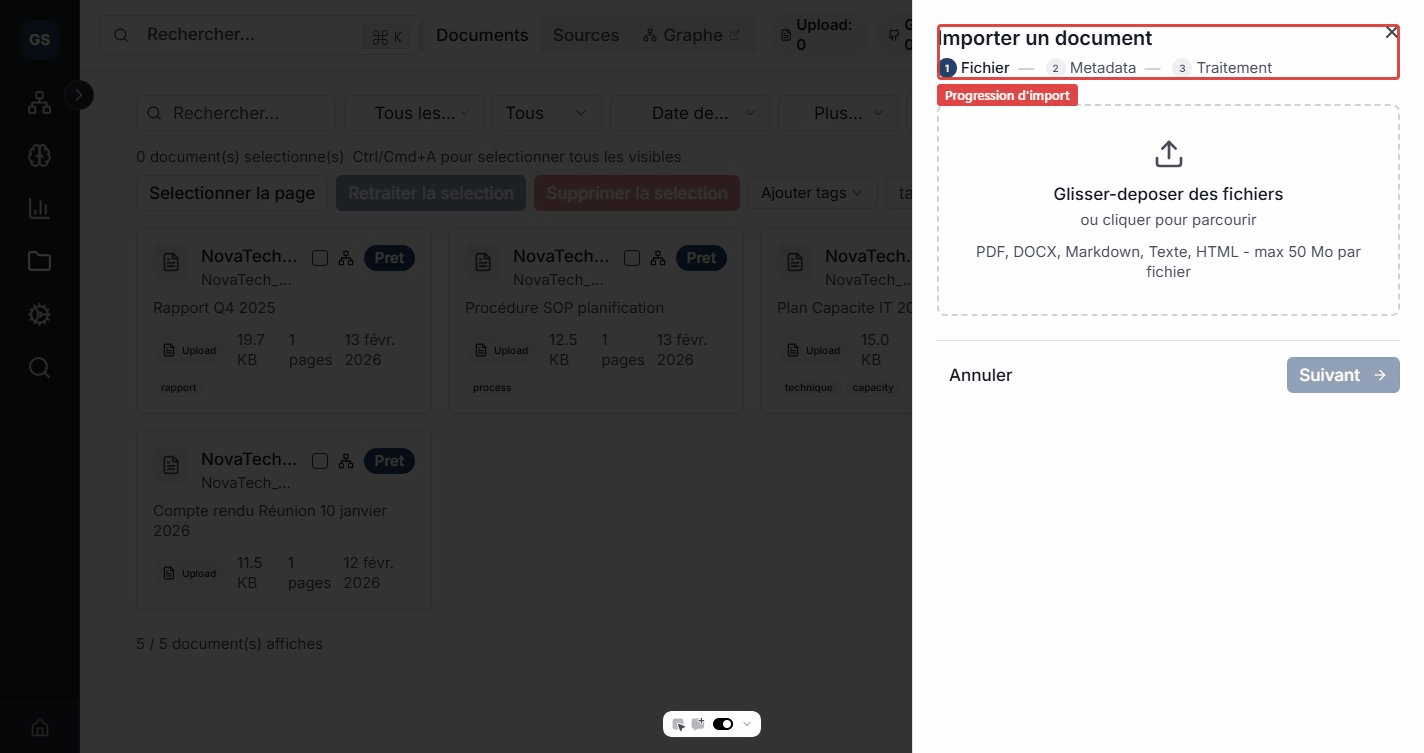
Click the Import button or drag and drop your files directly into the library. The import wizard guides you through three steps.
Accepted formats
| Format | Extensions |
|---|---|
.pdf | |
| Word | .docx |
| Markdown | .md |
| Plain text | .txt |
| HTML | .html |
Maximum size: 50 MB per file. You can import up to 50 files at once.
Step 1: File selection
Drag your files into the drop zone or click to browse your computer.
Step 2: Metadata
For each file (or in bulk), you can fill in:
- Title: pre-filled from the file name, editable.
- Description: a free-form summary of the content.
- Category: classify the document (Technical, Legal, HR, etc.).
- Tags: add keywords to make searching and filtering easier (for example: "contract", "supplier", "2026").
- Space: associate the document with a space in your ontology (for example "Supply Chain" or "Human Resources").
All these fields are optional. You can edit them after import.
Step 3: Processing
The import starts and you can follow each file's progress in real time. Processing (extraction, indexing, entity detection) continues in the background.
View a document
Click a document to open its detail page. You will find:
- Metadata: title, description, category, tags, origin source, and date added.
- Extracted content: the document text, organized by pages or sections.
- Detected entities: names, locations, organizations, and concepts automatically identified in the text.
- Processing status: each step (extraction, chunking, indexing, etc.) with its status.
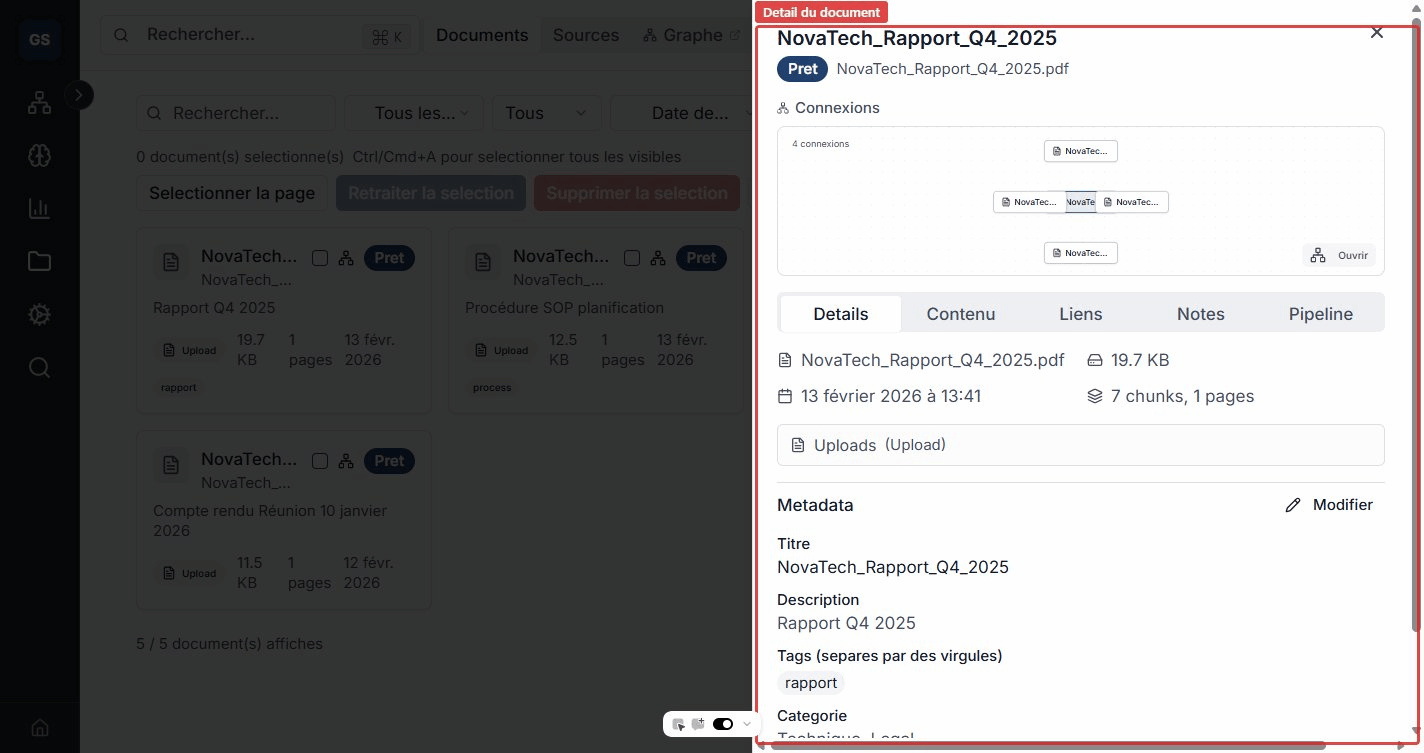
From the detail page, you can:
- Edit the title, description, category, and tags.
- Re-run processing if the document has been updated.
- Download the original file.
- Delete the document from the base.
Bulk actions
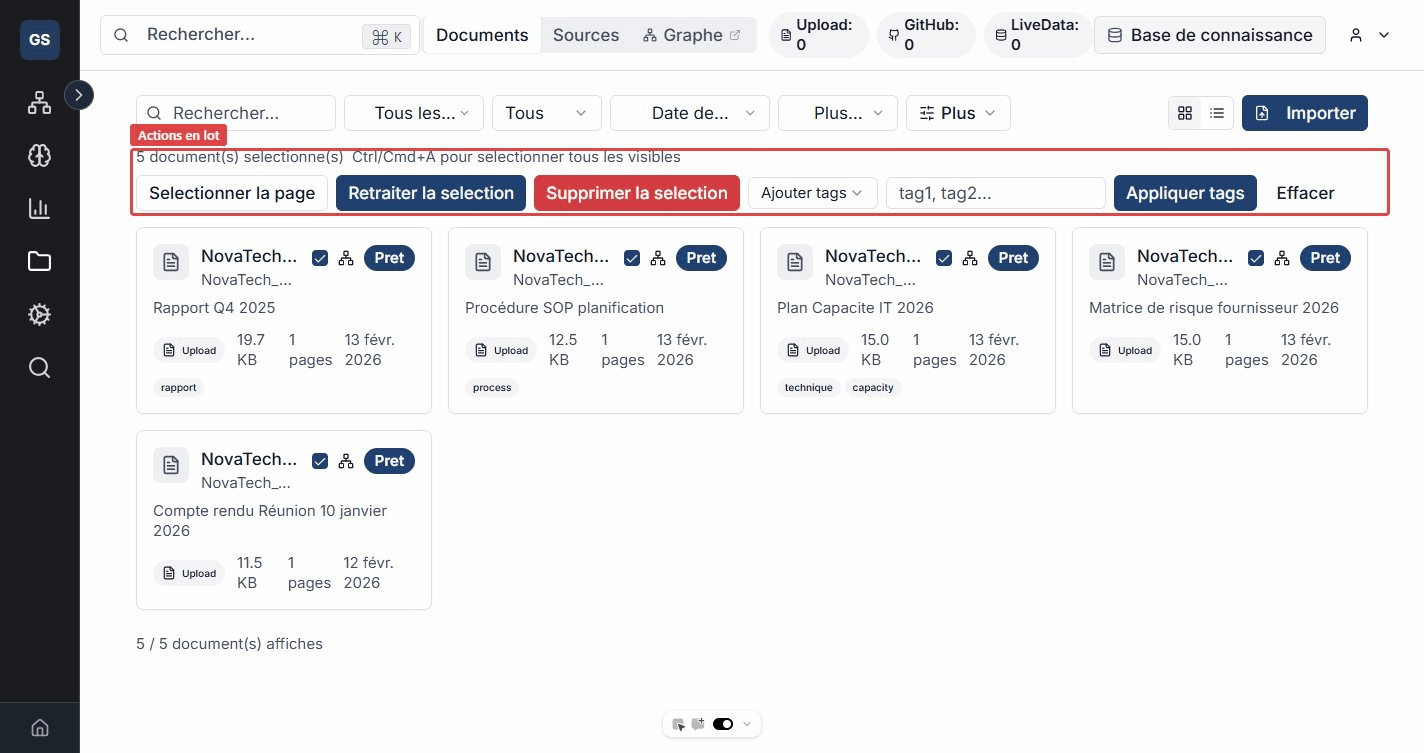
Select multiple documents (via checkboxes or the "Select page" button) to perform grouped actions:
- Add tags to the selection -- for example, tag 20 documents as "archive-2025" in one click.
- Replace tags -- replace "draft" with "validated" on all selected documents.
- Remove tags from specific documents.
- Re-run processing on selected documents (useful after an entity model update).
- Delete selected documents.
Navigation
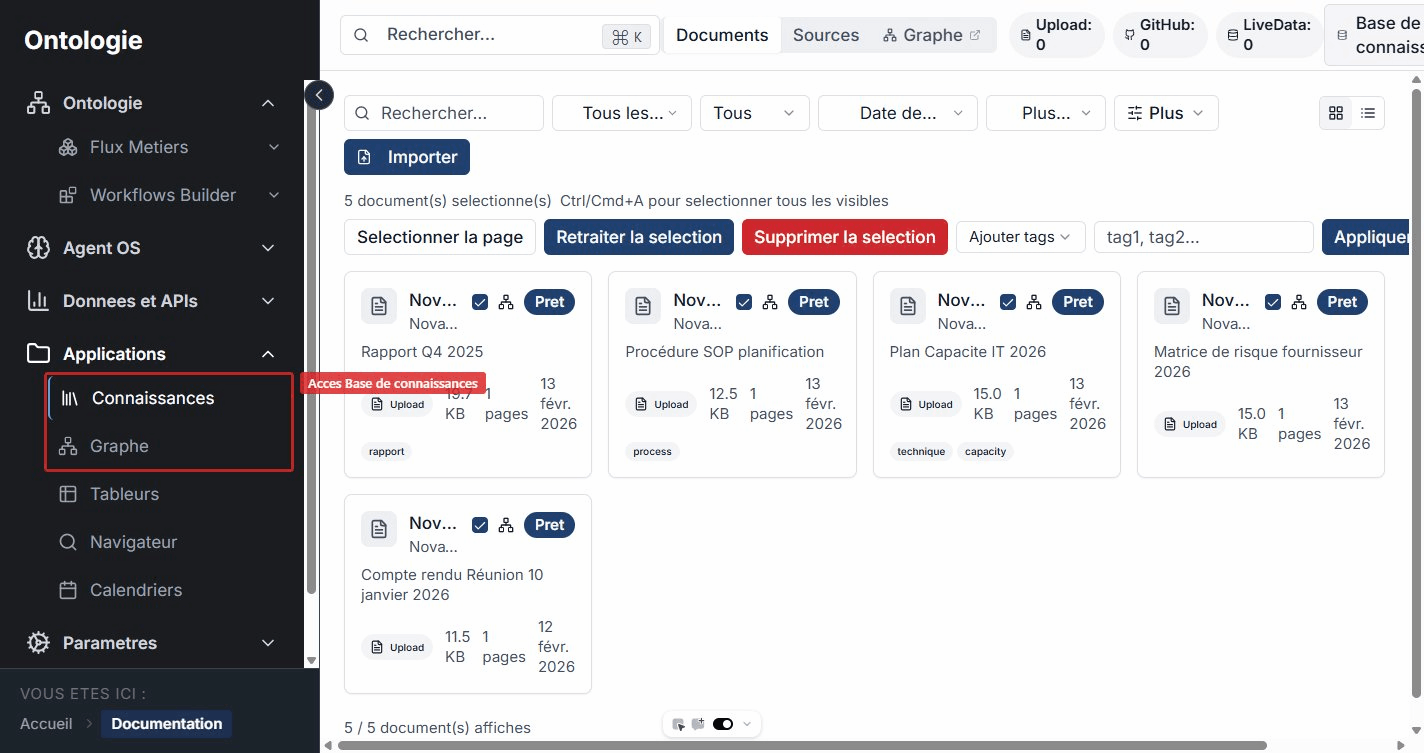
Find the Knowledge Base and the Graph from the sidebar, under the Applications section.
Expected outcome
Need help?
Write to us: Support and contact.