
At a glance
Identify and fix connection, mapping, or ingestion issues with your Live Data sources. This page guides you step by step to isolate the cause of an error and resolve it.
Before you start
- At least one connector configured (see Add a connector)
Steps
1. Spot sources in error
From the connector list in Live Data, look for sources flagged with a red indicator. These sources are experiencing a connection or ingestion problem.
2. Open the connector details
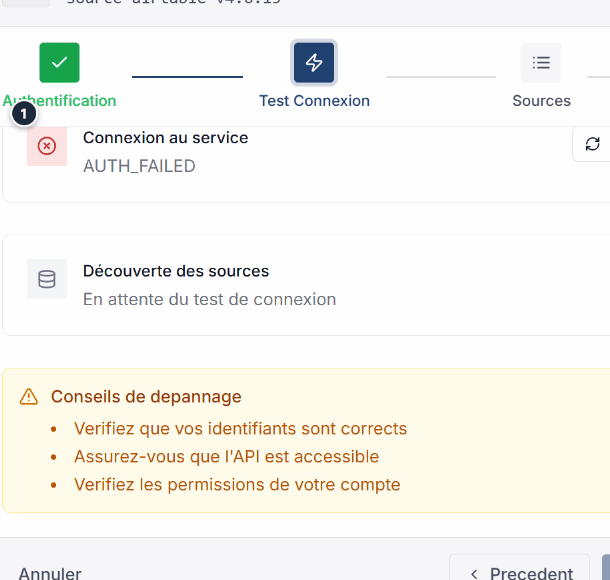
Click the affected connector to open its detail page. You will find the connection attempt history and associated error messages.
3. Test the connection manually
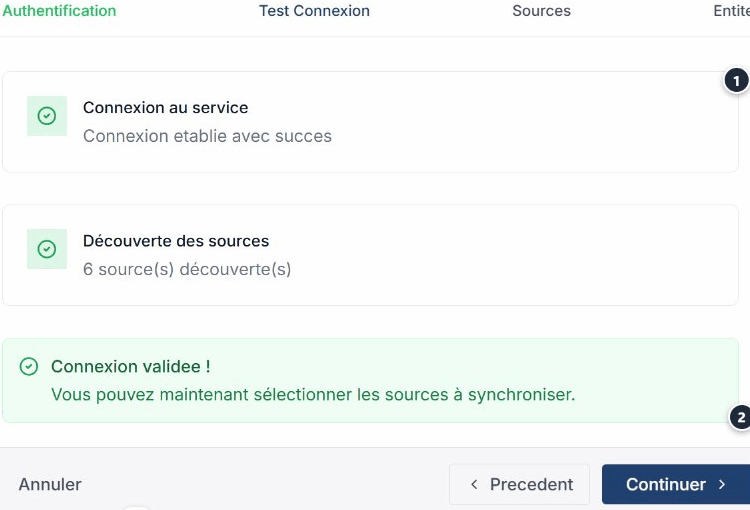
Click Test to retry a connection and isolate the problem. The result is displayed immediately.
4. Identify the cause
Check the displayed error message and refer to the common errors table below to find the appropriate fix.
5. Apply the fix
Modify the connector configuration according to the identified solution, then re-run the test to confirm the problem is resolved.
6. Verify data reception
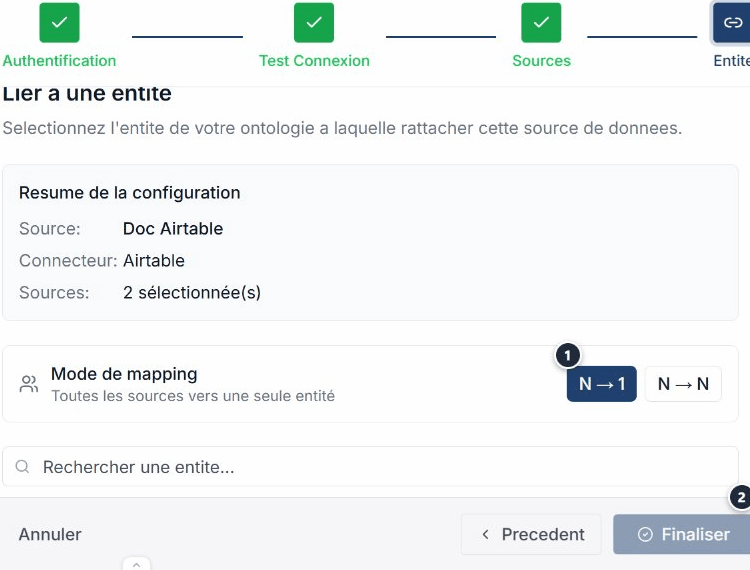
Once the connection is restored, verify that data is arriving correctly in the target entity of your ontology.
Common errors
| Error | Cause | Solution |
|---|---|---|
| Connection refused | URL unreachable or firewall | Verify the URL is correct and accessible from the network. |
| 401 Unauthorized | Invalid credentials | Update the authentication headers of the connector. |
| Timeout | Source too slow to respond | Increase the timeout in the configuration or reduce the request size. |
| Invalid signature (Webhook) | Incorrect HMAC secret | Verify the secret is identical in Ontologie and in your external system. |
| No data received | Incorrect mapping or inactive source | Check the connector configuration and the external source state. |
| 429 Too Many Requests | Too many requests sent | Increase the polling interval for REST sources. |
| 403 Forbidden | Access denied by the remote server | Check your API key permissions with the provider. |
| Invalid SSL certificate | The remote server certificate is expired or self-signed | Update the certificate on the source side or enable the "Ignore SSL" option (not recommended in production). |
| Truncated data | The response exceeds the maximum size | Add pagination or reduce the time range of the request. |
Expected outcome
Next steps
- Add a connector : Create and configure a new source
- Monitoring : Monitor the health of your syncs
- Webhooks : Configure push data reception
Need help?
Write to us: Support and contact.