
At a glance
Ontologie offers a catalogue of over 300 ready-to-use connectors to import data from your business tools (CRM, databases, marketing, analytics, e-commerce).
Before you start
- Access to an Ontologie workspace
- Credentials for the external source (API key or OAuth account)
Browse the catalogue
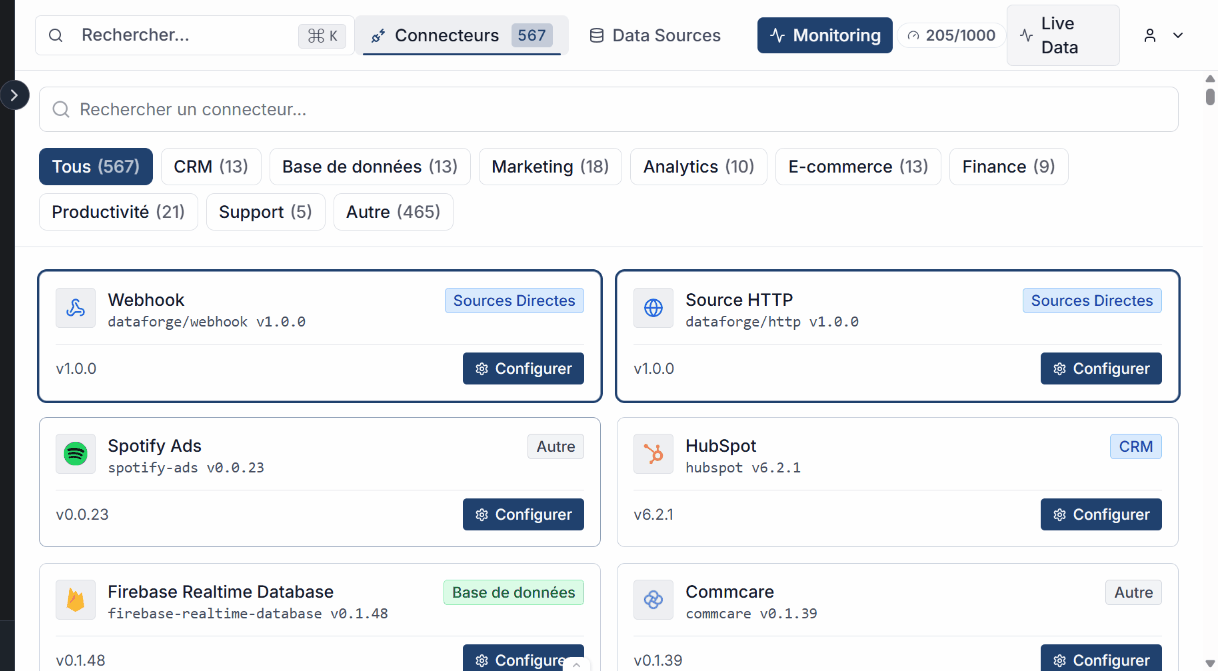
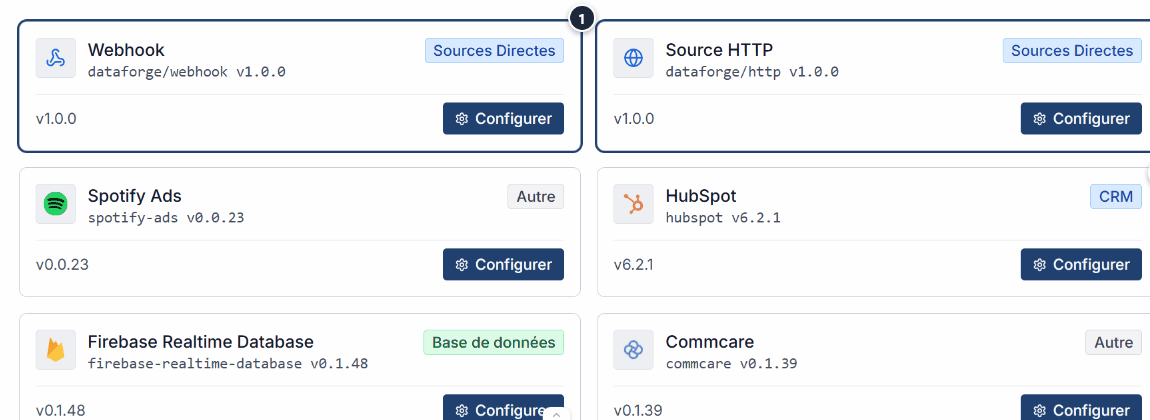
From Live Data, open the Connectors tab to browse the catalogue. Each connector is displayed as a card with its name, logo, category, and connection type.
Search and filter
Use the search bar to find a connector by name. Combine with category filters to narrow down the results: CRM, Database, Marketing, Analytics, E-Commerce, File Storage.

Connection types
Each connector uses a connection type suited to the external source.
| Type | How it works | Example |
|---|---|---|
| OAuth popup | Connection via an authorization popup. Scopes are configured automatically or customized. | Google Drive, HubSpot, Shopify |
| OAuth provider | Ontologie starts a provider OAuth flow, then maps the result to the Airbyte configuration. | Microsoft Outlook |
| Manual OAuth | Airbyte requires OAuth fields such as refresh_token, but no popup is available for this connector. | Enterprise connector without a provider strategy |
| API Key | Manual entry of an API key or personal access token. | Airtable, Stripe |
| Other | Basic auth, bearer token, custom headers. | Custom APIs |
Featured connectors
The most popular connectors have dedicated configuration pages.
| Connector | Auth type | Configuration page |
|---|---|---|
| Google Drive | OAuth | Configure Google Drive |
| Google Sheets | OAuth | Configure Google Sheets |
| Airtable | API Key | Configure Airtable |
| Microsoft OneDrive | OAuth | Configure OneDrive |
| Microsoft Outlook | OAuth provider | Configure Outlook |
| HubSpot | OAuth | Configure HubSpot |
| Stripe | API Key | Configure Stripe |
| Shopify | OAuth | Configure Shopify |
Configure a connector
Configuring a connector involves 4 steps: selecting the connector, entering credentials, choosing the streams to synchronize, and validating the connection. The process varies depending on the authentication type:
- API Key Connector : For sources using an API key or access token.
- OAuth Connector : For sources using OAuth authorization. The popup is available only when the wizard says so.
Expected outcome
See also
- Data Sources : Manage your configured sources.
- Entity linking : Connect your sources to the ontology.
- Monitoring : Monitor the health of your synchronizations.
- Diagnostics : Identify and fix errors.
Need help?
Write to us: Support and contact.