
The Modeler displays types and relationships on a canvas. Cards represent definitions; actual customers and orders appear in Instances.
Prerequisites
Choose the intended workspace and space. Check your model editing permission. Explore using the Client–Commande quickstart with demonstration data.
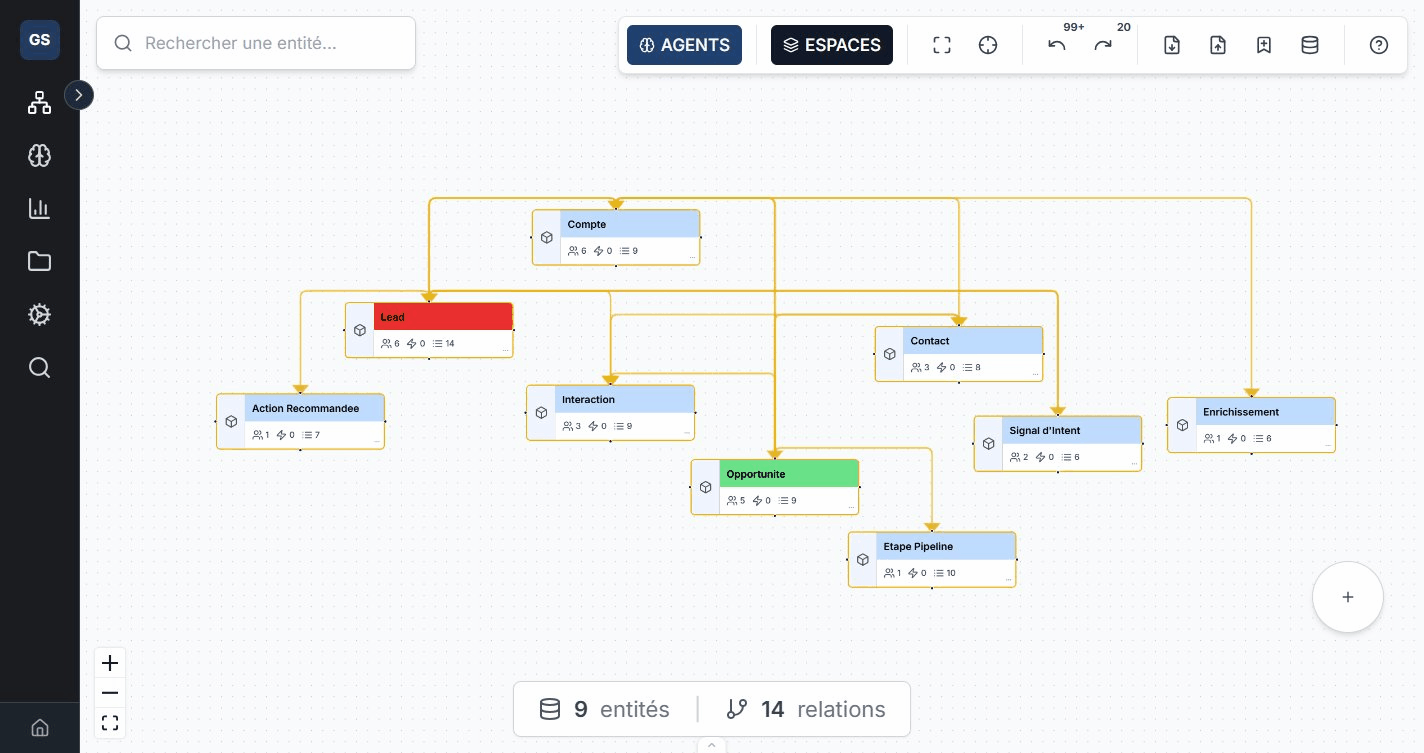
Create an object type
Use the canvas creation command. Choose Object, give it a business name such as Client and save. A type definition does not automatically create records.
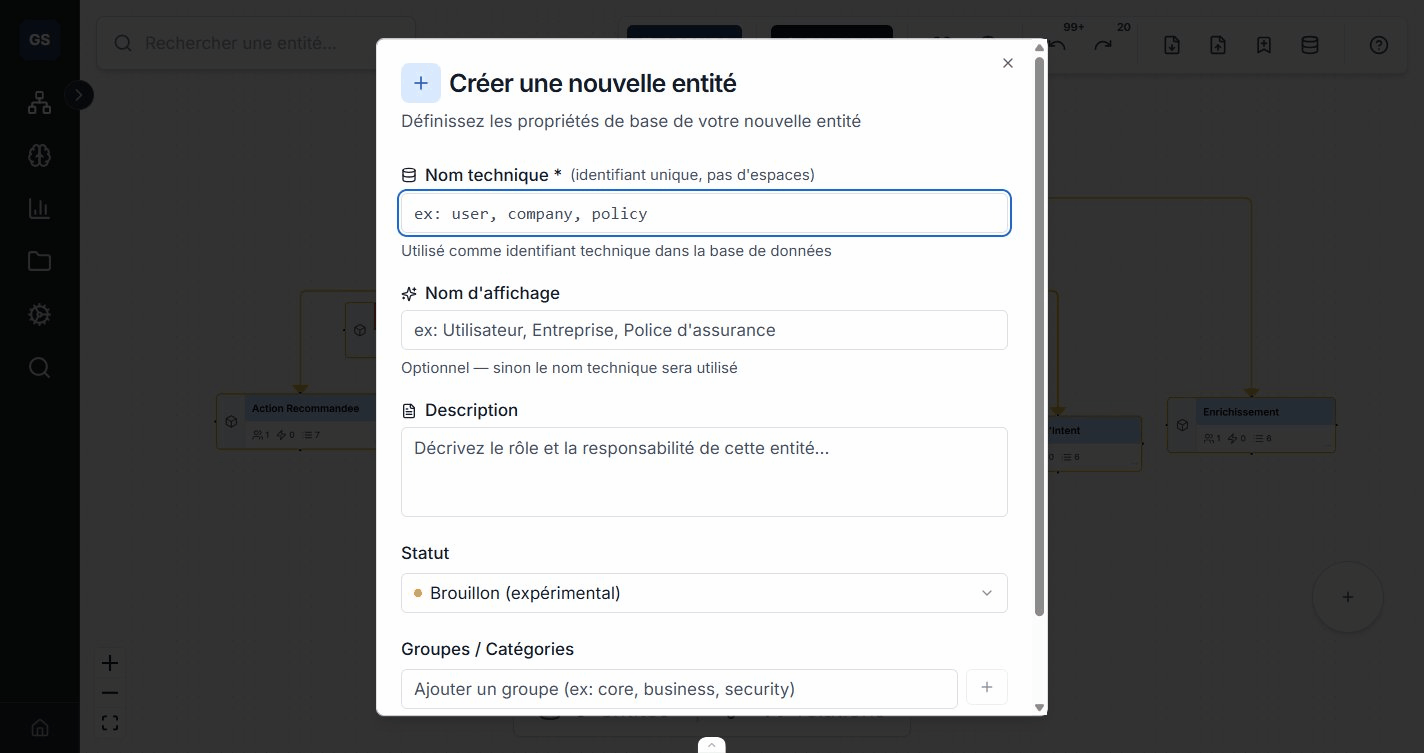
Add properties in the detail panel: Text identifiant, nom and statut. Reopen after saving to check persistence and constraints.
Choose property types
| Type | Purpose | Example |
|---|---|---|
| Text | Single text value | Name, reference, status |
| Number | Numeric quantity with a documented unit | Amount, duration in minutes |
| Boolean | True or false | Active |
| Date | Date or instant in the expected format | dateEcheance |
| List | Collection of values | Tags |
| Object | Nested structure | Address |
| Reference | Reference to another element | Target identifier |
List does not mean a dropdown for a single value. Technical names start with a letter and use unaccented letters, digits and underscores. Display labels can use natural wording: see Naming conventions.
Connect two types
Create Commande and a relationship from Client to Commande named passe. Check source, target and cardinality. A customer with several orders requires compatible cardinality.
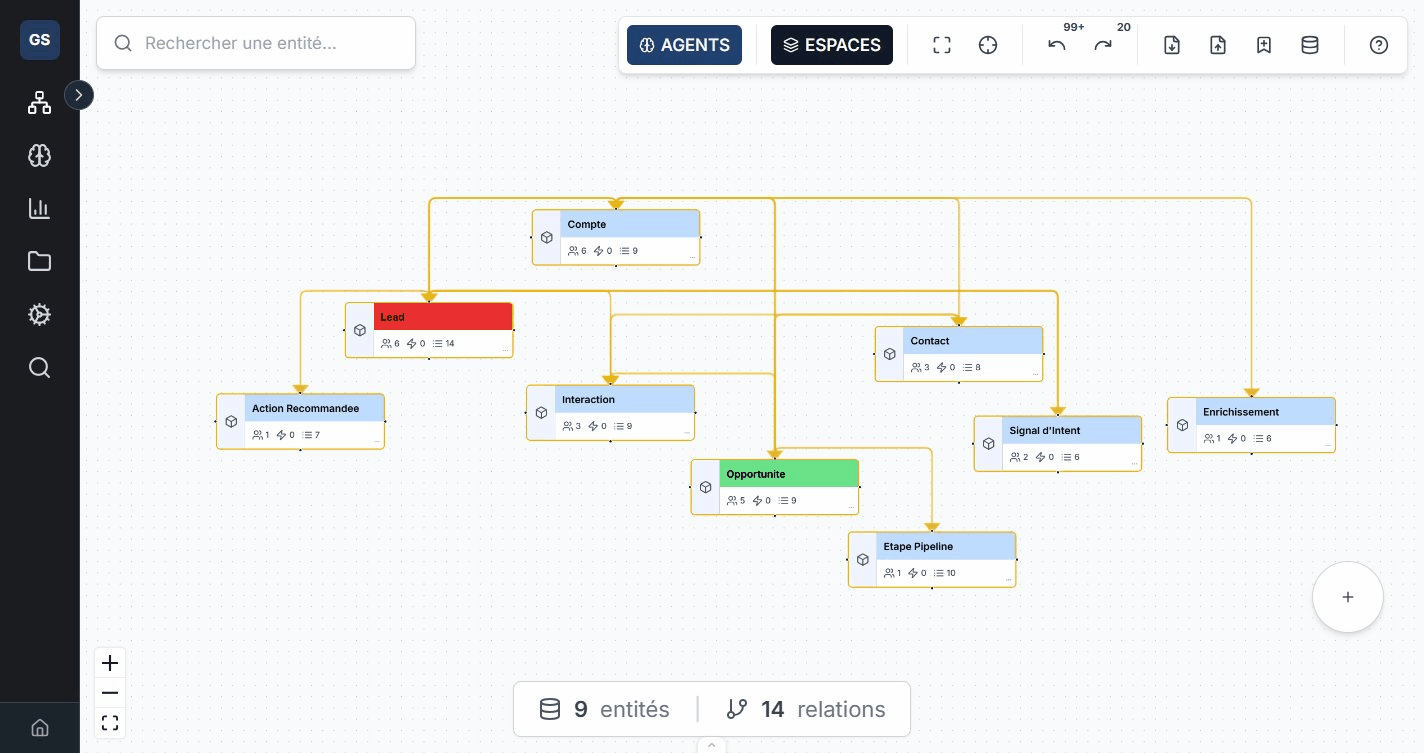
Defining a type relationship does not automatically connect every row from two sources. Verify identifier mappings and actual record relationships separately.
Use the detail panel
The Modeler provides seven tabs, subject to accessible elements and permissions:
| Tab | Useful check |
|---|---|
| Details | Name, description, status, properties and constraints |
| API | Associated contracts; check publication for external use |
| Sources | Source links and synchronized data |
| Instances | Native and external records |
| Relationships | Connected types, direction and cardinality |
| JSON | Structured definition and technical keys |
| Actions | Associated actions and available configuration |
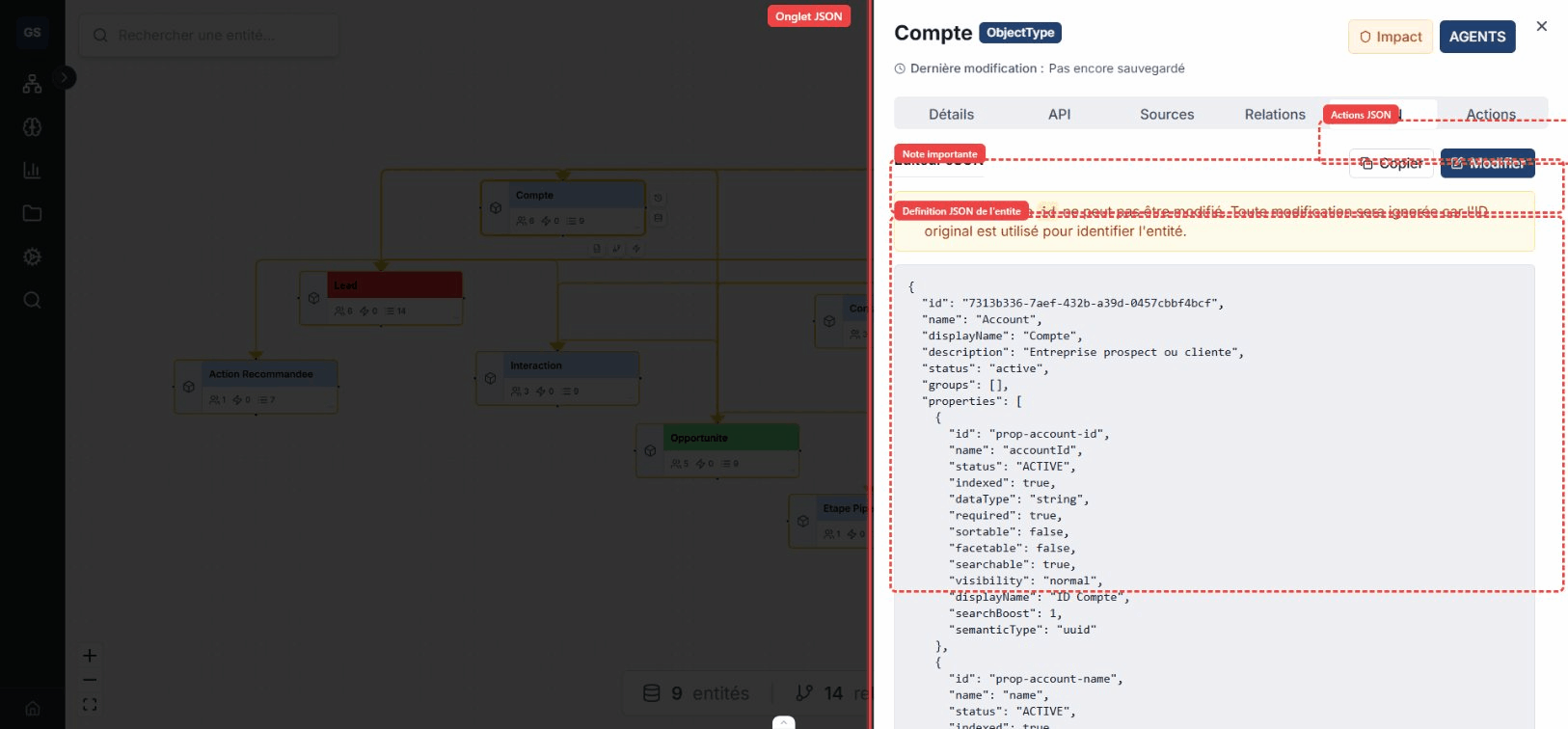
The Navigator has a separate Properties tab; its presentation differs from the Modeler. A model action is not automatically an active automation. For external calls, only an exact method and path in the published catalogue establish a supported operation.
Verify persistence and evolution
Save and reopen after editing. Check the JSON definition and an instance form. After a version conflict, read current state before reapplying changes. A closed panel does not establish successful persistence.
Before adding a constraint to a used type, test an old and a new instance. A required field does not populate historical values: follow Evolve a used type.
Delete a used type
Deleting Commande differs from deleting CMD-001. Ordinary type deletion may be refused while active records reference it. Check dependencies and the application's stated scope before confirming.
Instance deletion is logical deletion, not immediate physical erasure. See Instances. Expect a saved, verified model with types, properties and relationships whose meaning and consumers are understood.